
SSH worktrees
Orca can drive agents on remote machines over SSH — useful for long-running builds, GPU boxes, or any environment where your laptop isn't the right place to run the work.
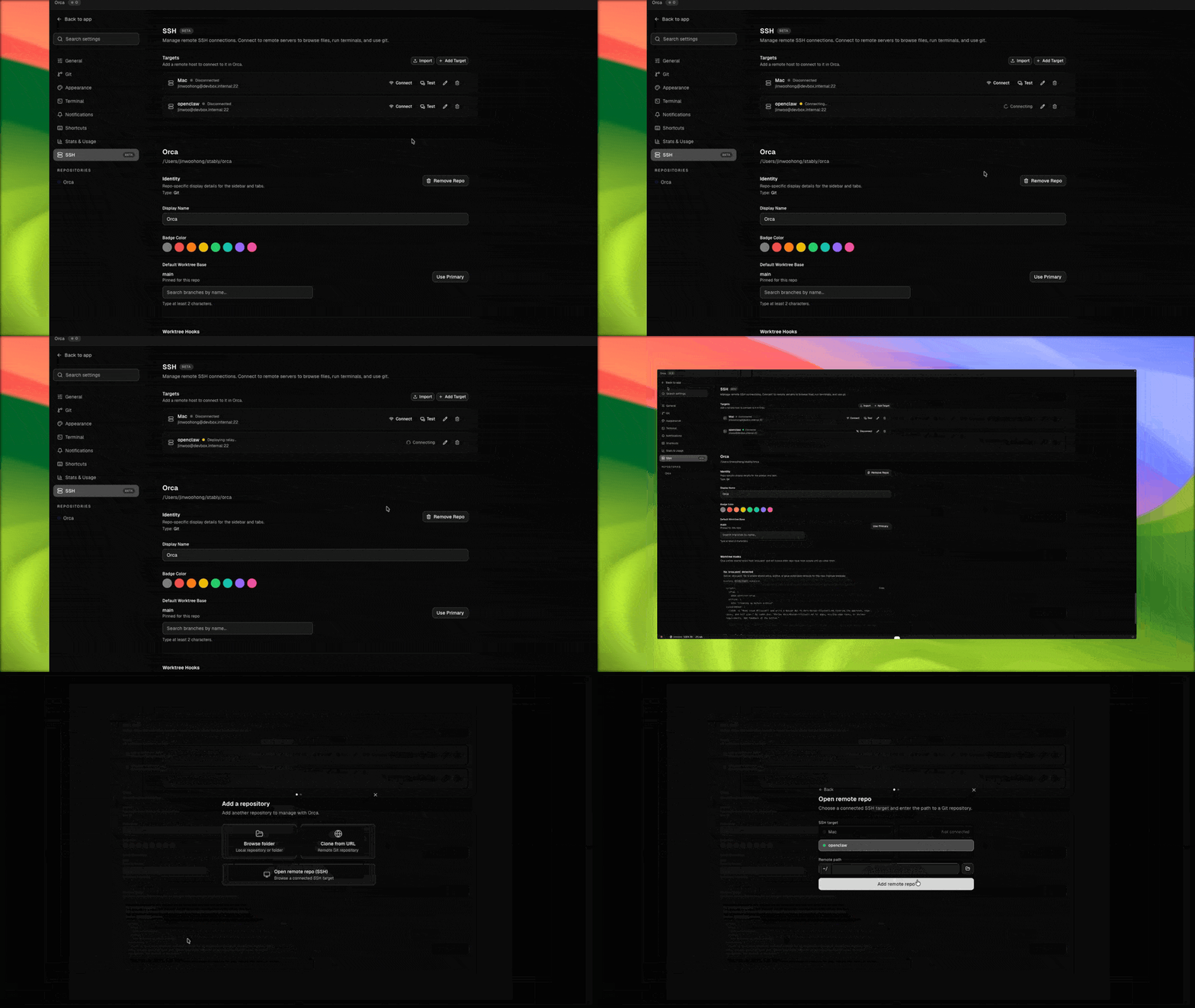
Add an SSH target
- Open Settings → SSH.
- Add a target: host, user, port, optional identity file. Orca also imports hosts from OpenSSH config files, including files referenced by
Includedirectives. - If the key is passphrase-protected, Orca will prompt the first time.
- Click Test to verify connectivity.
Use a target
When creating a worktree, choose an SSH target instead of Local. Orca will:
- Create the git worktree on the remote host.
- Run agents remotely through the SSH connection.
- Sync file events so the editor, diff, and browser still feel local.
Passphrases
Passphrases are held in memory for the life of the Orca session. Closing Orca clears them. You can opt into a longer TTL under SSH settings.
Status
Remote worktrees show a chip with live SSH status — green connected, yellow reconnecting, red disconnected. Disconnects don't kill running agents; Orca reconnects and re-attaches. Agent status (working / idle / blocked) propagates over SSH the same way it does locally, so the sidebar and Agents feed reflect remote agents in real time.
Sessions across app close
Closing the desktop app no longer kills your remote PTY sessions. Remote terminal sessions are leased through the relay running on the remote host, so they survive Orca closing on your laptop. When you reopen the app and reconnect to the target, leased PTYs are restored to their tabs in the attached state, with their scrollback intact. A short grace period (5 minutes by default, configurable per target) gives the relay time to ride out a quick reconnect before tearing down detached sessions.
Downloading remote files
Right-click any file in the SSH worktree's file explorer and choose Download to copy it to your laptop. Orca opens the native save dialog so you pick where it lands. This is a desktop-only action — the web client doesn't expose Download because it relies on Electron's save dialog.
Port forwarding
For remote worktrees, the right sidebar shows a Ports tab (toggle with Cmd+Shift+I). Orca scans /proc/net/tcp on the remote and lists listening ports under Detected — one click forwards them to your laptop. You can also add forwards manually, edit them, or remove them. Forwards persist across app restarts and SSH reconnects, and privileged remote ports auto-remap locally (e.g. remote 80 → local 10080).